FAQ and Installation Guide

Read me first

Q: Where can I download my wallpaper?
A: Download directly from the store after purchase. Updates are sent to your purchase email.
Q: Which iPhone models are these wallpapers compatible with?
A: Most of my wallpapers work with up to five recent iPhone generations. Since the screen ratios across models don’t differ much, the position of the Quick Action buttons on lockscreen only shifts slightly. Check the installation guide below to align the wallpaper as closely as possible with your specific model.
Q: Do I need an app to install it?
A: No for wallpapers. Widgets require Widgy (free version allows 1 slot per type).
Q: Why is the top part of my wallpaper blurred?
A: Use Installation Method 2 to fix this issue.
Q: What file format and resolution are included?
A: PNG format, minimum 2000px width, 300 PPI.
Q: Do you make wallpapers for specific iPhone models?
A: Custom versions are only available via membership. To request a custom fit, you need to purchase an existing wallpaper from the store. Then join the membership and submit a request by sending me a screenshot with the misaligned areas marked, so I can adjust it to match your iPhone screen.
Q: How long will it take to receive my wallpaper after submitting a request?
A: Due to time zone differences, requests may take up to 12 hours to complete, depending on your location.
Q: Do you offer refunds or support?
A: No refunds for digital products. Support is available for installation issues. Custom fitting requires membership.
Q: Does this work on Android devices?
A: Optimized for iPhone. Some may work on Android (see product description). Custom fitting is only available for Androids via membership.
Q: How do I access updates later?
A: You can contact me via Instagram or Threads DMs and provide the email you likely used for the purchase. I’ll help you access the latest version from there.

Installation Guide

How to install wallpaper and Widget corectly
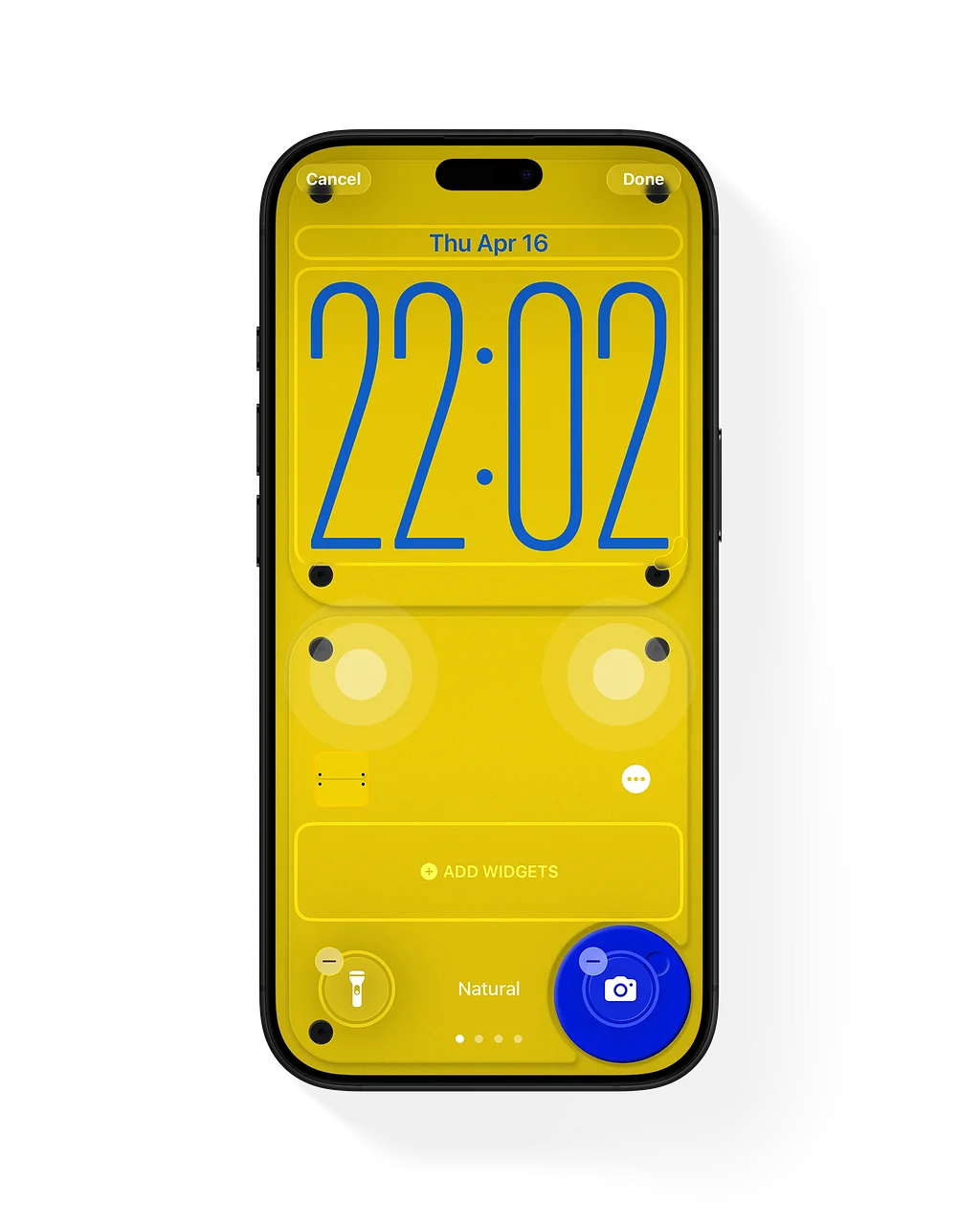
Method 1 (Recomended)

All of my wallpapers are designed to fit most iPhone models and are fixed horizontally. You only need to adjust the vertical positioning to align with the Quick Action buttons on your device by using two fingers (thumbs or index fingers) to pinch and move the wallpaper up or down until it lines up.

Depending on the device, the wallpaper may not align perfectly with the lockscreen buttons—it can be off by a few pixels depending on the model.
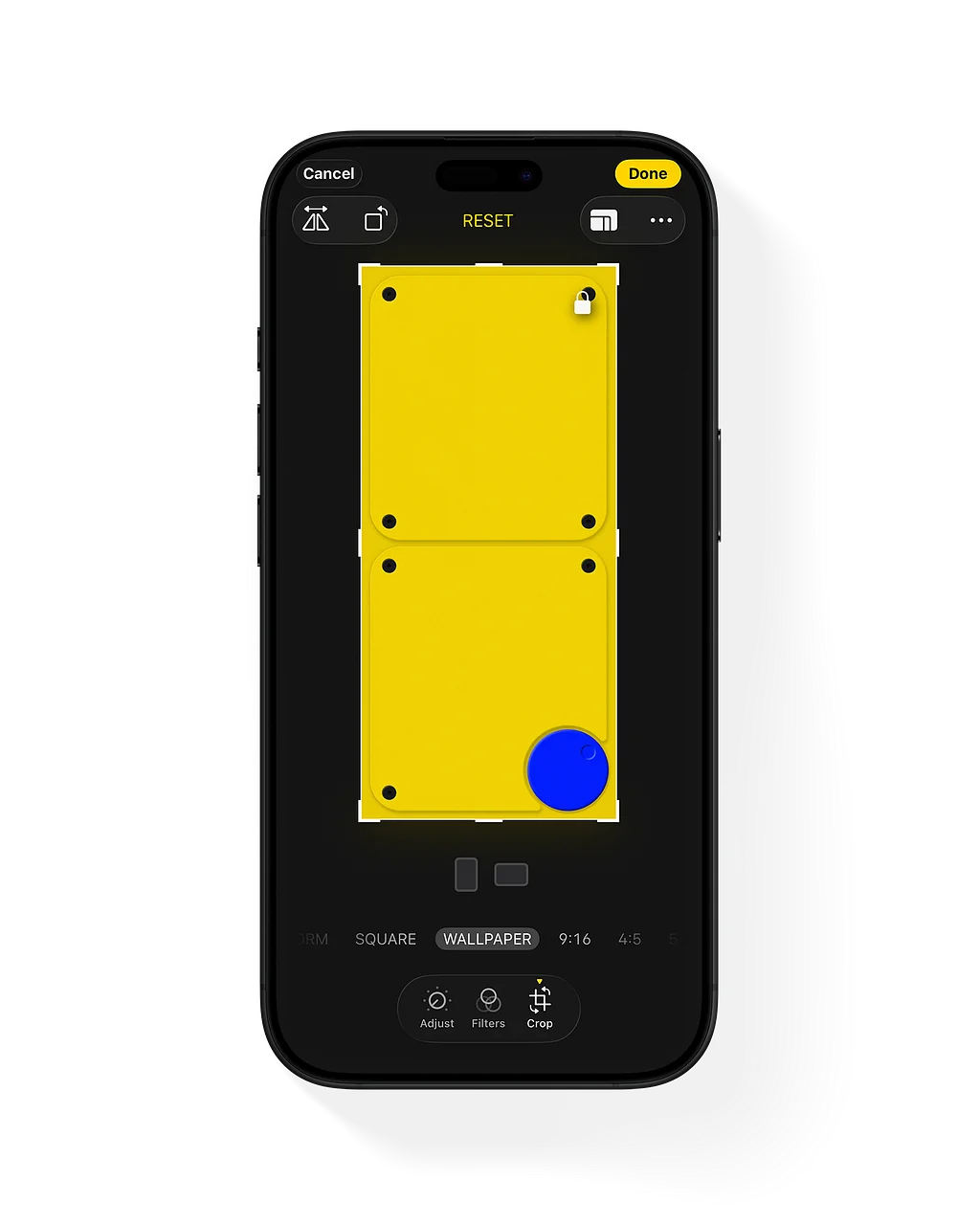
Method 2

Use this wheen Method 1 doesn't work correctly, or when the wallpaper appears blurred at the top.

Open the wallpaper you downloaded in Photos. Then tap Edit. Select “Crop” → tap “Crop” again to switch to ratio mode. Choose the “Wallpaper” preset → adjust it to align with the lockscreen quick action buttons (this method requires approximate positioning, not as precise as Method 1) → Done → Set as Wallpaper.

Setup Transparent Widgy Widget

Tap any icon, widget, or empty space on the screen to enter edit mode > Swipe to the last screen > Take a screenshot (shortcuts may vary depending on your iPhone model) > Open Widgy and switch to the "Manage" tab > Tap “Setup Transparent” tab > Turn off “Use Liquid Glass” toggle > Select the wallpaper you just screenshotted > Tap “Confirm” and wait for Widgy to generate.